AdSense Mobile Ad

Showing posts with label gmail. Show all posts

Sunday, September 27, 2009

Pushing gmail to your iPhone (without GPush)

As I told you some posts ago I bought GPush and struggled to make it work. At the end I started to be notified about incoming mail, although with some glitches from time to time. Now, very shortly after GPush was released, you don't need it anymore: Google Sync is now pushing mail to your iPhone.

This is really good news because now you can sync your mail, your calendar and your contacts with your iPhone. As I was already using Google Sync for contacts and calendars, setting up GMail push was really easy: just the flip of a switch!


If you haven't set up your Google Sync account on your iPhone, just follow the instructions on the Google Sync web site.

As far as I can tell, mail is pushed to the iPhone almost instantaneously. Nonetheless, there's a thing I'm not really happy about. I miss is a notification popup: no one is ever shown and the counter on the mail icon is the only information you're given when a mail is pushed:


I would expect a mail to be managed just like an SMS or even a phone call: checking periodically sort of defies the purpose of a push notification...

Wednesday, August 26, 2009

An update about GPush: it finally seems to work

If you're part of the club that wanted Google mail pushed onto your iPhone, the release of the GPush application did sound like good news. Unfortunately the application hasn't worked that well after its release and people started to complain. I was one of them: in this blog and directly to Tiverias Apps.

It was probably a scalability problem: they never tested an application with such a great number of users and GPush wasn't exactly the kind of application that passes unobserved. We were waiting for it! On its website support page Tiverias Apps has been constantly giving feedback to the users about the problems that we were experiencing. Finally I'm glad to state the following: GPush is working flawlessly for me since a couple of days.

There's some glitch, still, but I'm confident they will be resolved in a GPush application update. Specifically, I still can't change my account settings without uninstalling and reinstalling the application. It just ignores the change.

It was worth what I paid for it.

Update: You don't need GPush anymore if you want to have your google mail pushed to your iPhone.

Thursday, August 20, 2009

Don't buy GPush (yet): it's not working

So happy was I, yesterday: I thought my emails were going to be pushed to my iPhone, thanks to GPush, something many users were waiting for.

Yesterday I bought the application and I had no problem configuring it. It's a pity that, since then, I just receive one (yes: one...) notification. After that, silence.

Tiverias Apps, GPush producers, states that they're experiencing problems with their servers and that their developers should have isolated the code paths which are causing the problems that we're experiencing. Just hope it's not a scalability issue: sending push notifications to a great number of GMail users seems no easy job to me.

If you feel like buying the app, please wait for these problems to be solved.

Update: GPush has started to work.

Tuesday, August 18, 2009

GPush: Gmail push notifications for the iPhone

It finally has come true. I wish it was an Apple supported feature, as I think it should be; even so, I'm glad that GPush has finally made it into the App Store.

Nowadays GPush has very basic features:
  • It only lets you configure just one GMail or Google Apps account.
  • You cannot define filters.
  • The only way to stop incoming notifications is disabling GPush notifications in the iPhone control panel.
The first two issues are easily resolved by setting up an additional GMail account and configuring GPush to notify you about incoming mail in this account. Then, you can configure filters on the other account and forward to the GPush account only the mails you're interested in.

It's the first release and every software has its glitches. GPush is one thing I was really missing and I'm glad it's been deployed.

Tuesday, June 16, 2009

GMail with Evolution and the trash bin: how to organize mails and delete GMail messages

In part I of this series of posts (well, what meant to be just one post but it's going to explode...) I explored the basic configuration you need to setup Evolution as your GMail client. I also told you about GMail labels. labels are a mechanism to extend the concept of folders (in this case, IMAP folders): GMail servers indeed store just one copy of a message and if a message is labeled multiple times, the message will appear in all the corresponding folders. Label work just like UNIX hard links.

Folder names and GMail internal folders

GMail will provide one IMAP folder per label whose name will be the label's name. So far, so good. Now: GMail also uses some special folders to operate internally and you'll see them in the IMAP tree. These folders are:
  • [GMail]/All Mail
  • [GMail]/Drafts
  • [GMail]/Sent Mail
  • [GMail]/Spam
  • [GMail]/Starred
  • [GMail]/Trash
You really shouldn't use them but believe me, they just do what they say. Is it clearer why on part I we modified the default settings for some folders?
  • The [GMail]/Drafts folder is visible in GMail web interface, so it's very handy to have Evolution save drafts directly there: you could start a message on Evolution, save it, and then sending it from you mobile device. You should be aware of a gotcha: if you're editing a message with a large attachment beware that when the mail client saves it, it will indeed send the attachment to the server! In such cases, I just attach the file at last.
  • The [GMail]/All Mail folder contains a link to every single message in your account. That's why you should never store messages directly here unless you know what to do. We'll get into this later.
  • The [GMail]/Sent folder contains a link to every message you sent. GMail does this automatically for you: the message will be stored on the server and labeled accordingly. That's why you don't have to save sent messages on the server. You would simply waste bandwith!
  • The [GMail]/Starred folder contains a reference to starred messages. One more time you realize that everything's built around labels.
  • The [GMail]/Trash label is very special. We'll get into this later.

Copying and moving messages

The file metaphor still applies:
  • Copying a mail from a folder to another is equivalent to label a message with the destination folder's label.
  • Moving a mail from a folder to another means removing the origin folder's label and applying the destination folder's label.
In the introduction, I said that labels are similar to UNIX hard links. Yes, but there's an important difference: a mail isn't unlinked when its label counter is 0 and a mail can be unlinked even if its label counter is greater than 0.

Deleting messages

This is where things may not be so intuitive. I'll try to make it clera with an example: when you receive a message (and you don't have any auto-labeling filter triggered by such message), that email goes into the Inbox. Moreover, that message will automagically appear into the [GMail]/All Mails folder. Now: what's the IMAP gesture that corresponds to archiving such message? A valid answer would be: moving it to the [GMail]/All Mails folder. This would indeed translate to:
  1. Removing the GMail internal Inbox label.
  2. Applying the [GMail]/All Mails label (which is already applied to every message).
Thus, the only action you could perform would be removing the Inbox label and you could do it in a bunch of ways including:
  • Moving the message to a local (non-GMail) folder: this folder could also be the Evolution local Trash folder.
What has happened, then? Well: you think you deleted a message whereas you simply archived it. This is also true when multiple labels are applied. You can remove one label, but the same message could still be appearing in another n IMAP folders because of the remaining labels! How can you remove a message, then? Think about GMail web interface: when you delete a message, no matter the number of labels applied, what happens is that GMail is labeling it with the magic [GMail]/Trash label!
No matter how many labels a message has, labeling it with the [GMail]/Trash label effectively tell GMail to delete it in 30 days.
If you want to delete a message, then, just move it to the corresponding [GMail]/Trash folder of your account.

Is there a better way to do it?

I recognize that renouncing to the comfortable Delete button and having to move a message into the [GMail]/Trash folder is neither intuitive (semantically) nor easy: one click is addictive, a (right-click, move, choose folder) sequence is just a pain.

I had to cope with the same issue in Thunderbird but, fortunately, Thunderbird was easy enough to tweak in order to map the Delete action into the corresponding GMail action. It basically reduced to mapping the local Trash folder into the remote [GMail]/Trash folder and it could be easily accomplished manually editing the trash_folder_name property of each account.

I haven't (yet) found a way to do it with Evolution and I'll spend a couple of hours more to investigate it.

Monday, June 15, 2009

Configuring Evolution for GMail

Introduction

As many Evolution users may have noticed, Google does not include this mail client into the supported clients' list. If you, like me, are a UNIX user, you're probably wondering about which mail client to use between Evolution and Thunderbird. I'm not entering in such a war: I've been a Thunderbird user for a long time but I switched to Evolution mainly because:
  • It's an Exchange mail client out of the box.
  • PGP signing and encryption as well as S/MIME signing and encryption are supported out of the box.
  • It better suits my enterprise-class needs such as calendaring.
Platform independence, as far as it concerns myself, it's not an issue: I'm a Solaris user and both Thunderbird and Evolutions ship with SXCE (and Indiana as well).

Because there's no how to about how to set it up, I decided to share my configuration with you in a series of posts. Here's how I configured my Evolution mail client on Solaris.

Enabling POP/IMAP in GMail

The first thing you've got to do to be able to use a stand-alone mail client with your GMail account is enabling POP and/or IMAP in your account. This is a topic covered in GMail help documentation. Resuming it, citing the guide:
  1. Sign in to Gmail.
  2. Click Settings at the top of any Gmail page.
  3. Click Forwarding and POP/IMAP.
  4. Select Enable IMAP.


I'd personally recommend IMAP over POP. As explained in GMail FAQs, IMAP is a more flexible protocol which offer two-way communication between client and server. This means two-way syncing capabilities and it's ideal when you access your mail from more than one device.


Creating the account

Once your Google account has been set up, you can open Evolution and create your account(s). The connection parameters can be consulted here.

Receiving email

That's how Evolution calls the Incoming server configuration tab. There are a couple of things you should be aware of. Google documentation is adamant about the ports where its services are exposed: neither IMAP nor SMTP are published on the standard ports and so a customized setup is required. In the case of Evolution, this means you're going to modify the account you created in order to adjust the port number. Incoming mail server runs on port 993 and Evolution, unlike Thunderbird (if that's what you're thinking about...), doesn't allow you to introduce a port number. That's not a problem: just introduce the server address in the classic hostname:port notation. That is: imap.gmail.com:993. Please notice, also, that the Use Secure Connection configuration parameter is set to SSL encryption.

Receiving options
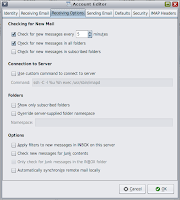


Well, these is really a question of taste, but a couple of settings are important. The check for new messages in all folders may be relevant to you because of the flexibility of GMail. Indeed, if you configured a filter to automatically label and move emails, you'd want to check this because, otherwise, only the Inbox folder would be checked for new mail.

Sending email

This configuration dialog is similar to the previously described Receiving email dialog.
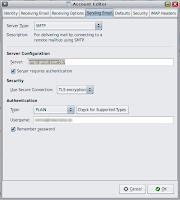


Notice the following:
  • Outgoing server is smtp.gmail.com:587.
  • The Use Secure Connection parameter is set to TLS encryption.

Use it!

Now, the account you just configured should be operational. Evolution is going to ask you for your account's password and then folders and emails header will be fetched.

Better user experience

Evolution is a pretty, straight forward email client inspired to Microsoft Outlook. Even if you're completely new to it, you'll quickly find your way through options and menus. Nevertheless I'm going to share a couple of suggestions.

Labels

GMail is not the typical mail service you may have used in the past. It has its own idiosyncrasies you should be aware of before tweaking your profile. GMail extends the concepts of directory through the concept of labels. Labels are like directories is that they're a mean to hierarchically organize emails but with a subtle difference: an email is usually owned by just one directory while an email can be labeled with as many labels you want. This means that in a given point in time an email could be owned by many folders, each for every label you labeled the message with. Removing a message from a folder means removing that label. On the other hand, copying a message into a folder is the GMail-equivalent of labeling a message.

Dos and don'ts

As documented, here's what you should do (quoting Google):
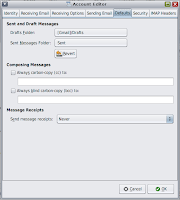
  • DO save draft messages on the server. If you want your drafts in your mail client to sync correctly with Gmail's web interface, set your client to save drafts to the [Gmail]/Drafts folder.
and here's what you shouldn't (quoting Google):
  • Do NOT save sent messages on the server. If your client is sending mail through Gmail's SMTP server, your sent messages will be automatically copied to the [Gmail]/Sent Mail folder.
  • Do NOT save deleted messages on the server. Messages that are deleted from an IMAP folder (except for those in [Gmail]/Spam or [Gmail]/Trash) only have that label removed and still exist in All Mail. Hence, your client doesn't need to store an extra copy of a deleted message.
  • Do NOT save deleted messages to your [Gmail]/Trash folder because this will delete a message in all folders.
  • Do NOT save deleted messages to your [Gmail]/All Mail folder as some clients will try to empty this folder and ultimately fail. This can lead to delayed mail access or excessive battery consumption on a mobile device.
  • Do NOT enable your client's junk mail filters. Gmail's spam filters also work in your IMAP client, and we recommend turning off any additional anti-spam or junk mail filters within your client. Your client's filter will attempt to download and classify all of your existing messages, which may slow down your client until the process is complete.
They're quite intuitive, once you grasp the labels' functionality but if you never wondered about it, they're indeed gotchas. Here's my default configuration:


Security

Do you mind about security and confidentiality, don't you? And if you don't, you should. Evolution let's you sign and encrypt your messages by means of PGP and S/MIME technologies. You can set your security preferences for your accounts and be sure to sign the messages you send:


And if you don't have a PGP or GPG key, I'll tell you how to create one and set up GPG on your Solaris box! ;)

Follow ups


In Part II of this series I will tell you more about some GMail idiosyncrasy and how to cope with message deletion.

Tuesday, February 24, 2009

GMail has gone down (and it seems I lost some setting...)

It's sort of a news I won't tell you anything new because all of the world is talking about this: GMail has been down for hours and Google hasn't (yet) given any explanation about the service outage. The thing that drives me crazy it's that it seems I lost the labels' configuration: they all reset their color to that pale yellow they had before customizing (each of) them.

Yes, it's not that bad: I could have lost data, who knows... and it wouldn't be the first time for it to happen with GMail. But these little details throw a shadow about the reliability of a service I'm running without any concern or doubt about its stability. I'm acting as if I thought it was absolutely bullet-proof. I do no gmail backup and never store a copy of my emails in any of the computers I use. I don't even backup my contacts or calendar details.

My fault, I admit, but Google service quality and ubiquity made me accustom to them: I know they're there, when I want, wherever I want, whichever device I could be using.

Should think about that very famous beta tag and value my personal data for what they're worth.

Edit on 02/25/2009: Today I opened the browser and discovered that the settings made their way back into my account! Google accustomed us to high levels of service and we tend to magnify the importance of every problem, even though taking into account the critical importance these services have for the tenths of thousands of users that every day log in in Google servers. If I paid for it, I would expect something more from it, especially in terms of post-mortem diagnosis and explanations from Google. Today, I still don't know what happened yesterday to GMail.